Player Report Ticket
Pressing on the ‘Player Report’ button will open a report ticket. As always the user will have to be discord linked to open this kind of ticket.
Upon opening the ticket, the user will be prompted with a drop down menu to choose from.
The user will have 1 of 3 options to select as seen below.
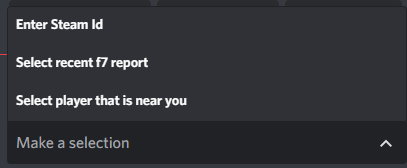
- Selecting ‘Enter Steam ID’ will ask the reporter to input the Steam ID of the person he wishes to report.
- Choosing ‘Select recent f7 report’ will provide the reporter with a list of their recent F7 reports. They can then open the ticket to a specific report.
- ‘Select player that is near you’ will display a list of players around the reporter on the specific server they are on. This is useful if they are unable to grab the name/steam ID of the person they are trying to report.
Once one of these three options have been selected, a ticket will be opened.
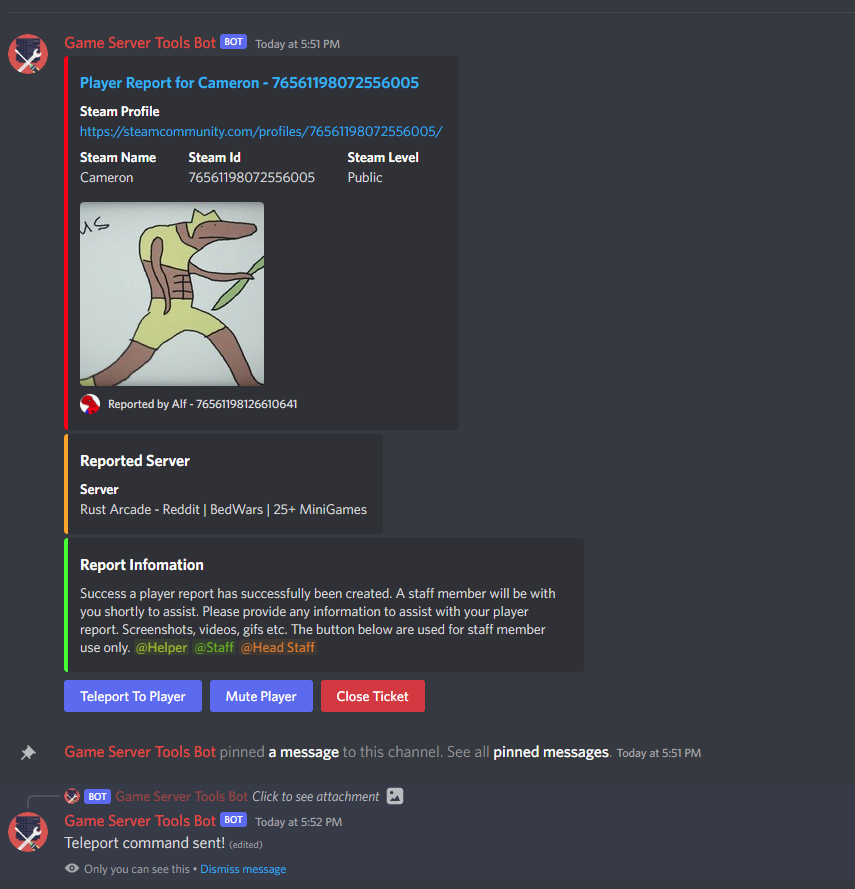
Example of a ticket - the server they are on is automatically found by GST Stats
Once created, a ticket will look like this. Here the reporter can send extra information or evidence against the person he has reported.
In the photo you can see that me - as a server admin - has pressed the ‘Teleport to Player’ button. Pressing this will teleport you to the user, should you wish to monitor them yourself. This feature will only work if you are connected to the server already on Rust and have the appropriate permissions in GST.
Admins are also able to press the ‘Mute Player’ button. Doing so will create a dropdown menu where they can select the appropriate mute time.